Showing posts with label tutorial. Show all posts
Showing posts with label tutorial. Show all posts
Thursday, April 28, 2016
A Cool Tutorial and A Cool Website

Thursday, April 14, 2016
Real World Animation Tutorials
You may have seen these videos on Vine or Facebook or somewhere. This guy Arron is a talented motion graphics editor who uses After Effects to make real world animations.
This is just another example of how advanced you can get with After Effects. He has a full tutorial on his After Effects techniques for this type of realistic, real world animation. It is not free ($50), but these techniques are extremely useful for advancing your realistic motion graphics abilities.
Check out his site for more information, other tutorials including free ones, other examples of his real-world animation videos, and more.

Tuesday, April 12, 2016
Professional Uses of After Effects
A lot of production companies and video game development companies design their own in-house software to accommodate their needs, such as Pixar. However, even these studios use publicly accessible software such as After Effects to do things we assume were made on far fancier software.
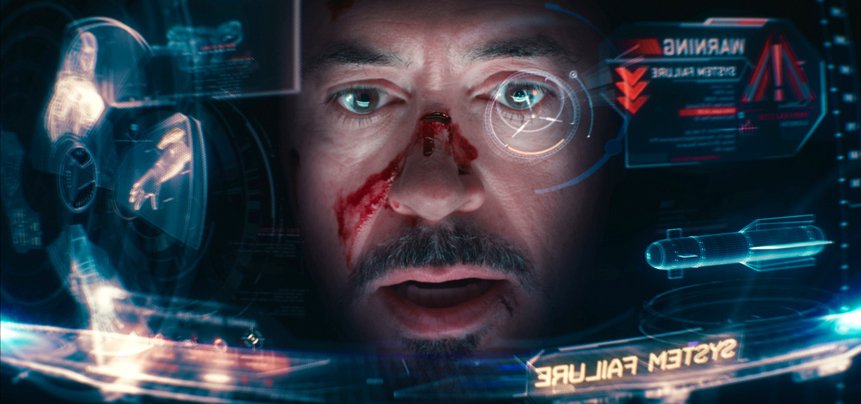
Here is a video from Adobe's site detailing the use of After Effects as a major editing tool for the movies Iron Man 3 and Oblivion. Its cool to see how within reach the professional level methods and motion graphics are, for those of us advancing our varying levels of motion graphics abilities. (Adobe has some other great videos relating to After Effects and their other products that are worth looking through.)

Thursday, April 7, 2016
Tutorial on City Fly-Through
Liquify
For one of my animation projects I needed to melt different objects. I did some research and found this interesting tutorial on how to liquify objects in after effects. It's very helpful and I plan to use this tutorial for my project. The animator does a good job of displaying the steps and in the end, the liquify effect seems to work perfectly. Check it out!
Wednesday, March 23, 2016
After Effects Tutorial: Particle Text Effect
I've been looking for a lot of After Effects tutorials that would give me cool text effects and give me lots of options for customization. This is a nice one that I found by Morocco that uses a particle effect--but I found that it could be altered to fit any other type of aesthetic.
I really like the style of this tutorial--it feels very modern and fresh but extremely customizeable. It's a good resource, especially since we've been dealing with a lot of text. Morocco's channel also has a lot more tutorials that deal with particles and logos and such.
If you want to explore more, definitely check out his Youtube channel--he has Photoshop tutorials as well as After Effects that are just as good.
I really like the style of this tutorial--it feels very modern and fresh but extremely customizeable. It's a good resource, especially since we've been dealing with a lot of text. Morocco's channel also has a lot more tutorials that deal with particles and logos and such.
If you want to explore more, definitely check out his Youtube channel--he has Photoshop tutorials as well as After Effects that are just as good.
Thursday, March 3, 2016
Replacing the Sky with After Effects
I found this short tutorial on replacing a less interesting sky with a more visually pleasing one using in house effects. This process turned out to be more simple than I originally thought it would be and you end up with a pretty good final product. It gets slightly more complicated when you have a moving shot which then requires some simple tracking which isn't too difficult to execute. I would definitely recommend checking out this tutorial if you are looking for an easy way to replace a flat sky in your shots.
Thursday, February 25, 2016
Juno Title Sequence
When looking to do my second project for class, I couldn't help but be drawn to the Juno opening credit sequence. It's fun and crafty looking in a hand drawn and original kind of way. So, I thought it'd be cool to try out. Little did I know how much effort was put into the sequence. Apparently, they filmed the actress, printed out each frame as photos, outlined them in pen, photocopied them, hand-coloured them, cut them out, and scanned and composited them in a way that would take me forever and ever to do. Luckily for me, I found a much simpler way to do it through a tutorial I found online, so hopefully I'll be able to figure it out.
Tutorial : Underwater
For one of my animation projects I wanted the setting to be underwater. I went on youtube to see if I could find any good tutorials and I came across this one. It’s a very helpful tutorial that captures the essence of being underwater. It goes as far as to create the light from the sun shining in through the water and shows you how to make realistic looking bubbles. I definitely recommend this tutorial if you are trying to create this scene.
Thursday, February 18, 2016
Pixlpit
This is Youtuber and animator Pixl Pit.
https://www.youtube.com/user/pixlpit/
I've stumbled upon a few of this guy's animations on Youtube before and I really like them.
Most of the animations I've seen from him have been where he takes the audio from another Youtuber's video and uses it to shape what he makes, while also often adding in some of his own audio to fill gaps. All of his animations on youtube are 3D and made in Maya. In addition to that, he also renders in RedShift and uses After Effects for compositing.
How I Made: Smoke, Space, and Snow! - Pixlpit Tutorials
At 0:43 seconds he zooms out, and you can see that the landscape he's working is actually a "bunch of pancakes." As someone not very familiar with Maya or 3D animation, I found it very fascinating that he was able to construct this environment from a few of simple forms. Furthermore, I liked that he was able to manipulate how it was viewed by changing the zoom and angle of the "camera" (I don't know how this is done specifically in Maya, but in After Effects there are cameras that achieve this). I don't know how helpful the tutorial actually is, but it's cool to watch his process and see how he makes these things.
Here's another video he did using the sound from another Youtuber's video.
Sunday, January 31, 2016
Walk Cycle Tutorial
As soon as I sat down at my computer and started to design characters that I would like to animate, a horrifying thought came to me. I have no idea how these characters move. I couldn't fathom how someone could animate a human--say--throwing a ball and making it look natural. Let alone a drawn character with different physical rules than a human. How would I make a cartoonish-looking figure walk and bend and express themselves?
I wasn't interested in making my characters too realistic, and wanted to pursue a more comical tone. After browsing through my hoard of favorite animation videos on Vimeo, I found that I was drawn back to an animator named Charles Huettner. I followed him a year or so ago and found that his style intrigued and inspired me. Digging through his videos, I found an excellent Photoshop animation tutorial that might prove useful for anyone wanting to animate a walk cycle of a character that isn't necessarily human. The first video features Charles Huettner and Caleb Wood animating in photoshop and the second is a finished animation by Charles Huettner.
I hope this inspires people as it inspired me! Get animating!
Thursday, November 12, 2015
Green Screen Edit Tutorial
As most of us are doing our last project I thought it would be helpful to share a green screen tutorial. Here is one I thought was very helpful! Good luck with your editing and I hope this tutorial was helpful to you guys!
Advanced Keying Techniques
So seeing as everyone will be keying their footage over the next few weeks, I'd like to share this tutorial. I used it for my scene, and it makes a tremendous difference. Traditionally I've always boosted greens a tad through the Hue/Saturation effect, then applied Keylight. Asides from that though, I don't do much else with green screen footage.
However this tutorial from 8 Bit Digital TV, shows a way of keying which preserves the colour of your footage, while using the matte from Keylight. See, normally the Keylight effect will not only remove the green background, but also green tinge in the skin. While this is helpful, since it's trying to remove so much green, it can take too much away from the skin and make skin tones look off. Whereas in this tutorial, you'll learn a way of simply using the matte Keylight creates, then taking away the right amount of green tinge in skin.
Check out the full video for a more in depth explanation, I'd highly recommend it for this project.
Check out the full video for a more in depth explanation, I'd highly recommend it for this project.
Sunday, November 8, 2015
An amateurs guide to working with color
So something that really helped me improve my graphic design game was dipping my toes into the wide and wonderful world of color pallets. When I first started animating, almost all of the colors I used for my projects were chosen from the default color map. Let me tell you that the color map on most programs is not there to help you, it's there to destroy your life. They're incredibly one note and even someone with a novice eye would be able to spot them out. Instead try going to sites that already have user uploaded color palletes (like this one: http://www.colourlovers.com/palettes), bring them into Photoshop, and using the color picker see how the different colors interact with each other. You may find that a color you thought looked yellow actually turned out to be closer to turquoise, or that you enjoy the look of muted color pallets more than overly saturated ones. Tastes in color vary from person to person, and often times the style you like may have not have been someone else's first choice.
Below are a few animations that do a wonderful job at using color to set the mood:
Below are a few animations that do a wonderful job at using color to set the mood:
Thursday, October 8, 2015
Prep for my Title Project
With lest than 2 months to the release of The Good Dinosaur, I want to make my Title sequence for this film. There's plenty of information avalible about the film online, but I wanted to try my hand at making a short Title sequence for the film. I wanted to share some of my ideas and give an Idea of the style I'm going for:
Firstly, the Two Trailers:
The Trailers give the most amount of information out there, specifically the story. As I blogged about last week, this pixar piece has alot of work put into the terrain and landscape. With all the focus on the Water especially, I wanted to use a mixture of fluid dynamics and 2D shapes to move around the names of the title sequence.
Basing alot of the style on the title sequence from Monsters, Inc.,
my plan is to use basic shapes of ovals and circles to show the characters, and keep the piece almost flat.
I also Want to try making some Text flow away as if it's in a stream:
and I'm pretty sure I found a Tutorial for how to make it work in Maya Here:
Below is a list of all the references I'd like to include in my Title Sequence:
Firstly, the Two Trailers:
The Trailers give the most amount of information out there, specifically the story. As I blogged about last week, this pixar piece has alot of work put into the terrain and landscape. With all the focus on the Water especially, I wanted to use a mixture of fluid dynamics and 2D shapes to move around the names of the title sequence.
Basing alot of the style on the title sequence from Monsters, Inc.,
my plan is to use basic shapes of ovals and circles to show the characters, and keep the piece almost flat.
I also Want to try making some Text flow away as if it's in a stream:
and I'm pretty sure I found a Tutorial for how to make it work in Maya Here:
Below is a list of all the references I'd like to include in my Title Sequence:
- Fireflies
- Comet
- Arlo the Dinosaur
- Spot the Boy
- Raging Water
- Crystals
- rushing past Vast amounts of land and sky.
I'll keep you up to date on the rest of the project as I go.
Thursday, September 3, 2015
Cheat Sheet
I am not one proficient in After Affects (yet), therefore I've done a little research looking through blogs, tutorials--anything that will help me learn the program as quickly and efficiently as possible. Obviously, there is a ton of great information on the internet to potentially put into action (including the contents of this blog). But if you're anything like me, the basics have to be grasped first before getting ahead of myself. As we've talked about in class, shortcuts are the key to efficient use of After Affects (and arguably any Adobe program). I understand the importance of being able to navigate AE swiftly and thus I thought I'd share with my fellow animation newbies this:

That's right, folks! The After Affects Keyboard Cheat Sheet. Isn't it beautiful? And what's posted above is only the beginning! The entire PDF includes shortcuts for projects, tools, workspaces, time navigation, layers, text, and so much more. Definitely something to print out and keep in the back of your notebook.
The entire PDF document can be found here.
Thursday, February 19, 2015
Building Fire
It's been a cold week here in Ithaca, reaching as low as -30 last weekend. Therefore, I decided to heat it up this week by posting a tutorial on how to build fire in After Effects.
So my name project involves an onion volcano so one of the things I had to do was build a fire. While I was expecting to need some stock footage or some fancy plugin, I found a way just to build it with a particle system. Here is the tutorial I found. The guy is austrian, his english isn't great, and its pretty long, but it gets the point across. I found it to be very helpful. Check it out.
https://www.youtube.com/watch?v=1z9ti_dGgQE
Note by Arturo
This one is probably better and shorter
So my name project involves an onion volcano so one of the things I had to do was build a fire. While I was expecting to need some stock footage or some fancy plugin, I found a way just to build it with a particle system. Here is the tutorial I found. The guy is austrian, his english isn't great, and its pretty long, but it gets the point across. I found it to be very helpful. Check it out.
https://www.youtube.com/watch?v=1z9ti_dGgQE
Note by Arturo
This one is probably better and shorter
Monday, January 27, 2014
Come one, come all. Visual effects tutorials for everyone!
Last semester, the director for my Fiction Field 1 short film wanted a production logo that resembled the one Lionsgate uses. Well, I didn't know how to make one. Nor did our graphic designer. But guess what. Yeah, you. I can make it now. Really. I can. Seriously. I can. I just don't want to show off and make you all feel terrible about your lack of animation skill.
"How'd you learn how to do that?" one might ask. It's actually fairly simple.
Step 1: Watch this video.
Step 2: Do exactly what the man in the computer says.
Did you do it? I doubt it. Well, if you had enough free time on your hands and you actually followed the tutorial, then you now have your very own, homemade Lionsgate logo animation! Congratulations! And for those of you who didn't...well, maybe you learned something anyway.
The video you (hopefully) watched comes from Video Copilot, a website that provides animators with tutorials and tips on how to make some of the most professional projects out there. This tutorial can be found just one click from their homepage under "Tutorials" along with about 150 others showing step-by-step how to create such animations that you've always wondered about.
The greatest thing about this website is the fact that, as long as you have Adobe After Effects at hand, anyone can do it. They literally go step-by-step when teaching you a new skill. They even explain what it is exactly that they're doing so you're not just following a bunch of jibber jabber. Yes, I said jibber jabber. Andrew Kramer, the gentleman speaking to us in the tutorial, even has a few jokes for us! He's no comedian, but he certainly adds a bit of personality to what could have possibly been a very dull explanation. Kramer is actually a very experienced visual effects artist, not just some guy on a computer who knows a thing or two.
Anyway, I've gotten seriously off topic. To sum up what I meant to discuss, the linked tutorial, along with all the others from the Video Copilot website, is an extremely efficient and simple way to learn much of what you need to know in order to become a great computer animator.
Friday, November 22, 2013
Animate Still Photos in After Effects
Arturo has briefly gone over this technique in class, but I recently saw a very impressive video made entirely of still images from the WWF archive that have been animated to look like video. It's a really captivating technique and it gives the pictures a breath of new life. Ken Burns, I'm sorry, but your methods are just too old school nowadays. It's time to get our pictures animated with After Effects!
First, check out the video they cerated:
First, check out the video they cerated:
Some of these shots took a lot more worth then others, but you can see how much more captivating the picture becomes when it starts moving. If one of you is looking to create a similar effect in your movie trailer project, here's a nifty tutorial by The Creators Project that walks you through the process:
Friday, September 13, 2013
Face on Inanimate Object Effect
I recently found a fun and easy tutorial on ae.tutsplus.com on how to add your face onto an inanimate object. Also, with the Golden Doorknobs competition coming up, I'm really thinking about possible creative ideas to put together. With this, I could give doorknobs a personality of their own and make something really unique. Just a thought.... anyways, here's the example video the tutorial provides:
The full tutorial can be seen on the ae tutsplus website:
http://ae.tutsplus.com/tutorials/vfx/put-your-face-onto-an-inanimate-object/?search_index=6
It seems like a fun trick to know in general. It also helped me understand motion tracking a little better.
Enjoy the link and good luck everyone!
The full tutorial can be seen on the ae tutsplus website:
http://ae.tutsplus.com/tutorials/vfx/put-your-face-onto-an-inanimate-object/?search_index=6
It seems like a fun trick to know in general. It also helped me understand motion tracking a little better.
Enjoy the link and good luck everyone!
Subscribe to:
Posts
(
Atom
)